


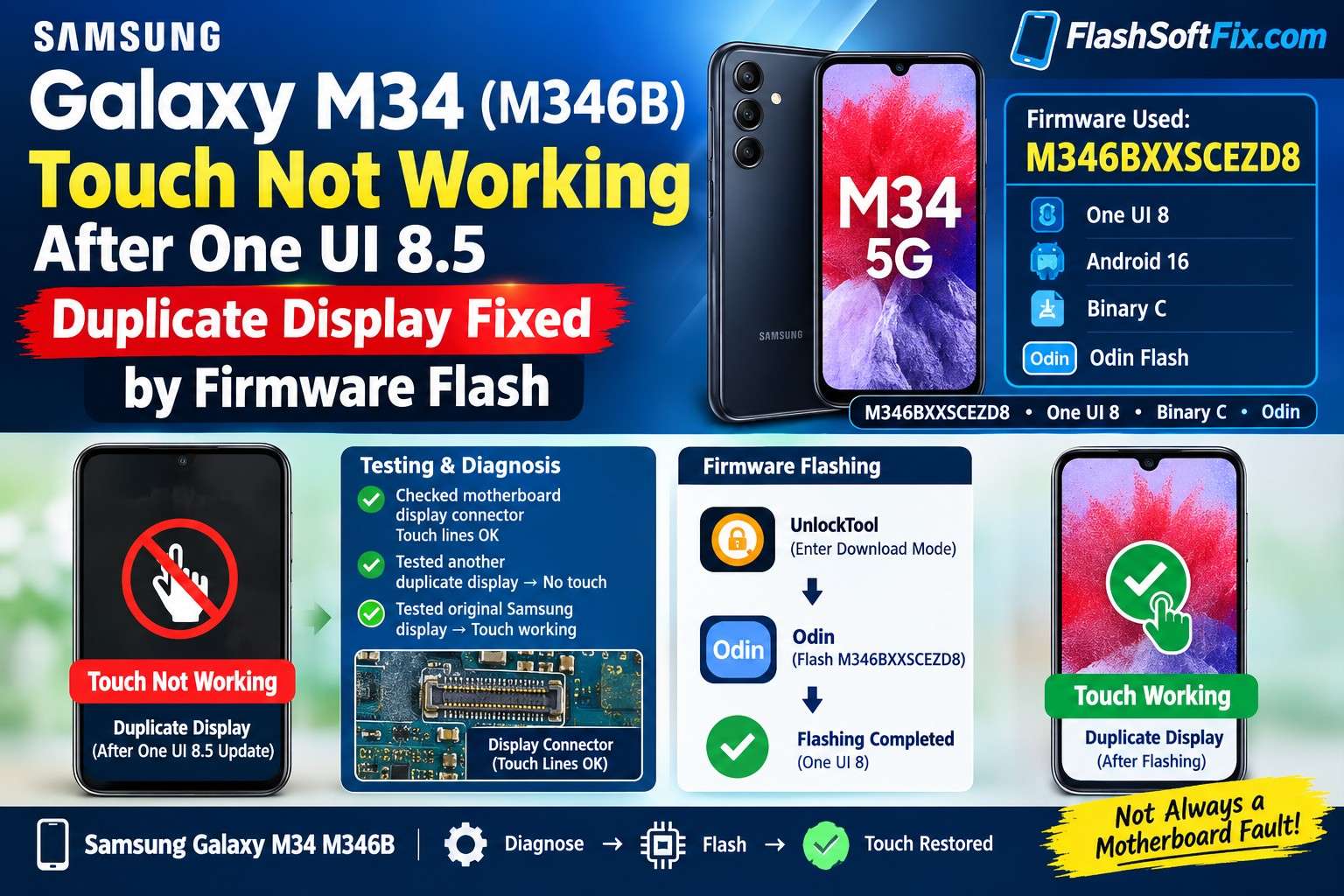
A recent Samsung Galaxy M34 5G SM-M346B repair at our shop provided an interesting example of how a touchscreen problem can sometimes be related to aftermarket display compatibility with a particular software version, rather than a motherboard hardware failure.
The customer came to our shop with a Galaxy M34 that had previously received a replacement display from another repair shop. The installed display was a duplicate/aftermarket display.
The phone had been working normally with that display. However, after the customer updated the phone to One UI 8.5, the touchscreen completely stopped responding.
After testing the motherboard, multiple displays and finally the original Samsung display, we were able to identify a strong software/display compatibility indication. Instead of replacing the expensive original display, the customer agreed to a firmware downgrade. After flashing the M346BXXSCEZD8 One UI 8 firmware, touchscreen operation was restored.
This is the complete repair case.
Samsung Galaxy M34 M346B Touch Problem After Software Update
Device Information
| Item | Details |
|---|---|
| Device | Samsung Galaxy M34 5G |
| Model | SM-M346B |
| Region/CSC | INS – India |
| Problem | Touchscreen not responding |
| Previous display | Duplicate/aftermarket |
| Software before repair | One UI 8.5 |
| Tested firmware | M346BXXSCEZD8 |
| Firmware OS | Android 16 |
| One UI | One UI 8 |
| Binary / SW REV | C |
| Security patch | April 5, 2026 |
| Flashing tool | Odin |
| Download Mode assistance | UnlockTool |
| Final result | Touch restored |
The SamFW firmware listing identifies M346BXXSCEZD8 as an INS India firmware for SM-M346B, with AP version M346BXXSCEZD8, CSC version M346BODMCEZD8, Android 16, and Binary C.
Download page for M346BXXSCEZD8 on SamFW
Customer Complaint
The customer explained that the phone had previously been fitted with a replacement display.
The display was not an original Samsung display. It was a duplicate/aftermarket display.
Initially, everything was working properly:
- Display picture was working
- Touchscreen was working
- Phone was usable normally
The problem appeared after the customer updated the phone to One UI 8.5.
After the update:
The touchscreen stopped responding.
The customer therefore brought the phone to our shop for diagnosis.
First Step – Check the Motherboard Display Connector
Because the touchscreen was completely dead, the first suspicion was a possible hardware problem.
We inspected the motherboard display connector and checked the relevant touch lines.
The connector and touch-related lines were checked and appeared to be okay.
There was no obvious damage that could explain the complete loss of touch functionality.
At this point, we did not want to immediately conclude that the motherboard was faulty.
A known-good display test was required.
Testing With Another Duplicate Display
We connected another new duplicate/aftermarket display to the phone.
The result was interesting.
The touchscreen still did not work.
This was an important diagnostic result.
We now had two duplicate displays showing the same behavior.
If only one replacement display had failed, the display itself could easily have been blamed.
But another duplicate display produced the same result.
So we continued testing.
Testing With an Original Samsung Display
Next, we obtained an original Samsung Galaxy M34 display assembly from another M34 and connected it temporarily for testing.
The result immediately changed.
The original display touchscreen worked.
This was the most important test in the entire repair.
The motherboard was able to operate the touch function when an original Samsung display was connected.
That meant we could not simply call this a motherboard touch-line failure.
The combination of results was now:
Duplicate display → Touch not working
Another duplicate display → Touch not working
Original Samsung display → Touch working
This pointed toward a possible compatibility issue involving the aftermarket display and the newer firmware.
Why We Did Not Replace the Display
Technically, one solution was to install an original Samsung display permanently.
However, the original display was expensive.
The customer did not want to spend that much money on the repair.
Instead of immediately replacing the display, we discussed another possible solution with the customer:
Try an earlier compatible firmware version.
We explained that flashing the phone could result in a factory reset and data loss.
The customer understood the risk and gave permission to proceed.
This approval was important because the customer’s data was not something we could guarantee would survive the repair procedure.
Download Mode Was Not Working Normally
The next problem appeared when we attempted to put the phone into Samsung Download Mode.
Normally, Samsung phones can be entered into Download Mode using the appropriate key combination and USB connection procedure.
However, in this case, we were initially unable to enter Download Mode normally.
Since firmware flashing through Odin requires the phone to be in the appropriate flashing mode, we needed another method.
Using UnlockTool to Enter Download Mode
We performed a hard reset on the phone.
After the reset, we used UnlockTool and its Download Mode function to get the Samsung Galaxy M34 into Download Mode.
Once the phone entered Download Mode successfully, we could proceed with the firmware flashing operation.
Firmware Selected for the Repair
For this repair, we used:
M346BXXSCEZD8
This firmware is listed for:
- Samsung Galaxy M34 5G
- SM-M346B
- INS – India
- Android 16
- One UI 8
- Binary C
- April 5, 2026 security patch
The SamFW listing also identifies the full firmware as approximately 8.12 GB and provides AP, BL, CP, CSC and HOME_CSC packages.
The firmware package includes files such as:
AP_M346BXXSCEZD8...BL_M346BXXSCEZD8...CP_M346BXXSCEZD8...CSC_ODM_M346BODMCEZD8...HOME_CSC_ODM_M346BODMCEZD8...
Binary / SW REV Is Important
Samsung firmware has a Binary / SW REV level.
The firmware we used was:
Binary C
M346BXXSCEZD8
The later firmware branch listed for the M346B includes One UI 8.5 builds with different firmware versions and, in later releases, higher binary levels. For example, the INS firmware list shows M346BXXSDFZG7 as Binary D and One UI 8.5.
This is why technicians should always check the device’s current binary before attempting to flash an older Samsung firmware.
A lower bootloader binary is not something that can simply be flashed onto every newer-binary Samsung device.
In this repair, the firmware selection was made with the device’s binary compatibility in mind.
Flashing With Odin
After entering Download Mode, we connected the Samsung Galaxy M34 to the computer and opened Odin.
We loaded the appropriate firmware files into Odin and started the flashing process.
For a standard Samsung multi-file firmware package, the firmware components are assigned to their corresponding Odin slots:
- BL → Bootloader
- AP → System/AP firmware
- CP → Modem
- CSC → CSC/reset-related package
- HOME_CSC → Intended to preserve user data when conditions permit
The SamFW instructions similarly describe loading AP/BL/CP/CSC files into the appropriate Odin slots and cautioning that Re-Partition should not be selected during a normal firmware flash.
Important:
The exact flashing method should always be selected according to the firmware, device state and repair requirement.
In this particular customer repair, data loss had already been explained and accepted by the customer.
Flashing Completed Successfully
The Odin flashing process completed successfully.
The phone rebooted and started the setup process.
After the phone finished booting, we connected and tested the replacement duplicate display again.
This was the moment we were waiting for.
The touchscreen was working.
The same duplicate display that had refused to respond after the One UI 8.5 update was now functioning correctly after returning the phone to the earlier One UI 8 firmware.
Final Testing
We performed the touchscreen test again after flashing.
The touch function was restored.
The repair result can be summarized as follows:
| Test | Result |
|---|---|
| Original duplicate display before update | Touch working |
| Duplicate display after One UI 8.5 | ❌ Touch not working |
| Motherboard touch lines | ✅ Checked/okay |
| Second duplicate display | ❌ Touch not working |
| Original Samsung display | ✅ Touch working |
| Flash M346BXXSCEZD8 | ✅ Successful |
| Duplicate display after flashing | ✅ Touch working |
This sequence of tests was the key to understanding the problem.
What Was the Actual Problem?
Based on this particular repair, we cannot conclusively say that One UI 8.5 physically damaged the duplicate display.
That would be too strong a conclusion.
What the repair demonstrated was a strong relationship between the newer firmware and the aftermarket display’s touch functionality.
The evidence from our testing was:
- The duplicate display worked before the software update.
- Touch stopped working after the software update.
- The motherboard display connector/touch lines were checked.
- A second duplicate display also failed to provide touch.
- An original Samsung display worked.
- Flashing back to the tested One UI 8 firmware restored touch on the duplicate display.
Therefore, the most reasonable diagnosis from this individual case is:
Firmware/aftermarket-display compatibility issue.
The newer software appears to have exposed a compatibility problem with the duplicate display’s touch implementation.
However, this should be treated as a case-specific repair observation, not a guarantee that every aftermarket M34 display will behave the same way.
Why Testing With an Original Display Is So Important
This case demonstrates an important lesson for mobile phone technicians.
When a customer says:
“Touch stopped working after a software update.”
Do not immediately start repairing the motherboard.
First establish whether the problem follows the display or remains with the motherboard.
A known-good original display can be extremely useful for this diagnosis.
In our case:
Duplicate display = No touch
Original display = Touch working
That single comparison dramatically narrowed the problem.
Don’t Immediately Blame the Touch Lines
Checking the motherboard touch lines is important, but line testing alone does not always tell the complete story.
A touch system involves more than simply having continuity on a line.
The display assembly can contain its own touch-controller hardware, firmware and communication behavior.
An aftermarket display may use a different implementation from the original Samsung part.
Therefore, a phone can have:
- Good connector
- Good motherboard traces
- No obvious physical damage
and still experience a touch-compatibility problem with a particular display.
That is why known-good display testing is one of the most valuable diagnostic steps.
Customer Data and Flashing Precautions
Before flashing firmware, technicians should always discuss the possibility of data loss with the customer.
In this repair, we specifically informed the customer that the process could erase the phone’s data.
The customer agreed to proceed.
This is an important part of professional repair practice.
Always:
- Inform the customer about possible data loss.
- Obtain approval before proceeding.
- Confirm the exact model number.
- Check the current firmware/binary.
- Use firmware intended for the correct model/region where appropriate.
- Keep the battery sufficiently charged.
- Use a reliable USB cable and stable PC connection.
- Avoid interrupting the flashing process.
- Do not select options such as Re-Partition unless there is a specific technical reason and you know exactly why it is required.
Firmware Details Used in This Repair
For technicians who want to document this case, the firmware information is:
Model: Samsung Galaxy M34 5G
Model Number: SM-M346B
CSC: INS – India
PDA/AP: M346BXXSCEZD8
CSC: M346BODMCEZD8
Android: Android 16
One UI: One UI 8
Binary: C
Security Patch: April 5, 2026
Tool: Odin
Download Mode: Entered with UnlockTool
These details are taken from the firmware listing for the exact INS firmware.
Repair Workflow
The complete troubleshooting process can be simplified into this workflow:
Customer reports touch failure
↓
Check display connector
↓
Check motherboard touch lines
↓
Test another duplicate display
↓
Touch still not working
↓
Test original Samsung display
↓
Original display touch works
↓
Discuss expensive original display replacement
↓
Customer chooses software solution
↓
Explain possible data loss
↓
Hard reset
↓
Enter Download Mode using UnlockTool
↓
Flash compatible M346BXXSCEZD8 firmware using Odin
↓
Phone boots successfully
↓
Test duplicate display
↓
Touch Working Successfully
Final Result
The Samsung Galaxy M34 5G SM-M346B was successfully repaired without replacing the customer’s expensive duplicate display.
The touchscreen had stopped responding after the phone was updated to One UI 8.5.
After hardware checks and display comparison, the original Samsung display was found to have working touch, while the duplicate displays did not.
The customer did not want to purchase the expensive original display, so a software-based solution was attempted with the customer’s approval.
After entering Download Mode with the help of UnlockTool, we flashed the M346BXXSCEZD8 Binary C One UI 8 firmware using Odin.
After flashing:
The duplicate display touchscreen started working again.
This repair is a good reminder that not every touchscreen failure is a motherboard fault.
When a touch problem begins immediately after a software update—especially on a phone fitted with an aftermarket display—technicians should consider display/firmware compatibility as one possible cause and verify it through proper testing before replacing expensive hardware.
Technician’s Key Takeaway
Before replacing a motherboard or expensive display, test with a known-good original display and check whether the problem started immediately after a software update.
In this case, that diagnostic approach helped us avoid an unnecessary expensive display replacement and successfully restore touchscreen operation through firmware flashing.

